Staff guide
For everyone who signs in at a site. The pictures show a made-up camp. Yours carries your organisation's name.
1. Your first time at the tablet
- Tap the green IN button.
- Start typing your name, then tap it.
- Type your mobile number. It has to be the one the office has for you.
- Choose a 4-digit PIN and type it twice. Keep it to yourself.
- The tablet asks when you can work. Every time starts green, so unselect the times you can't work, press Next, tick the sites you can get to and press Save.
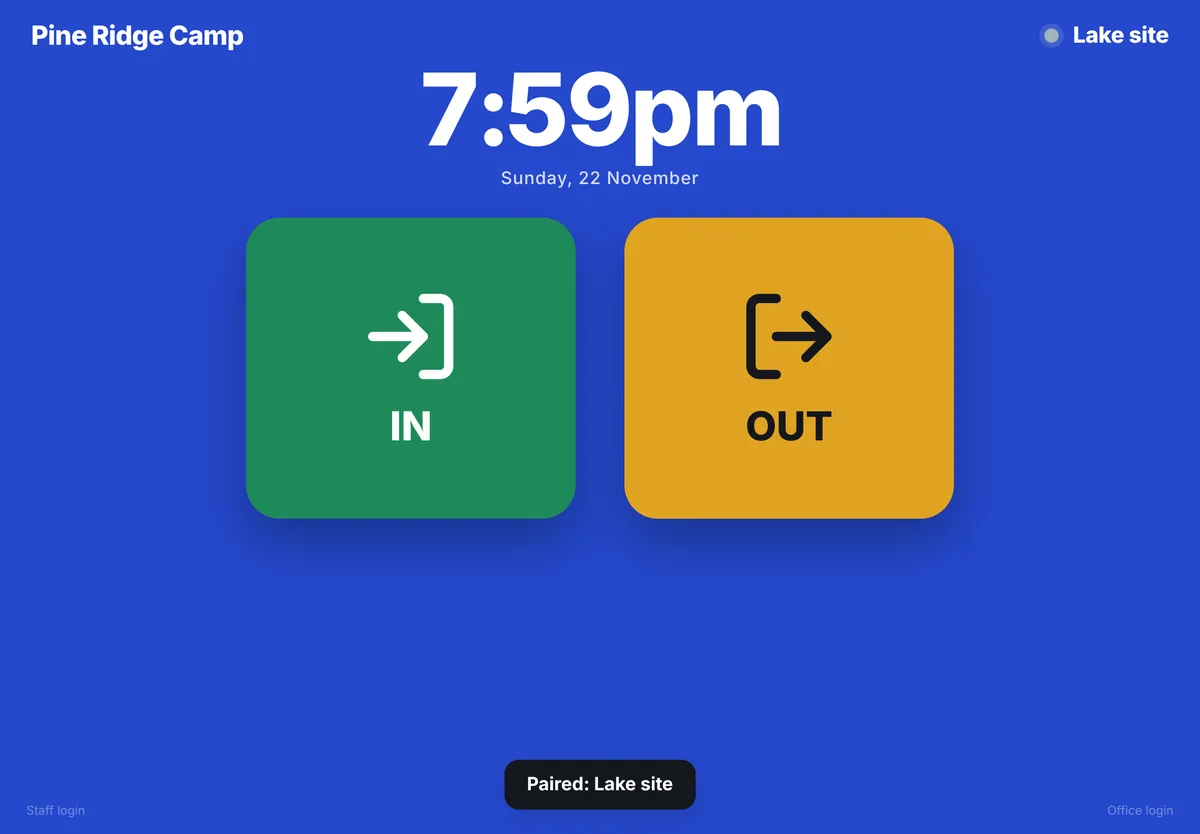
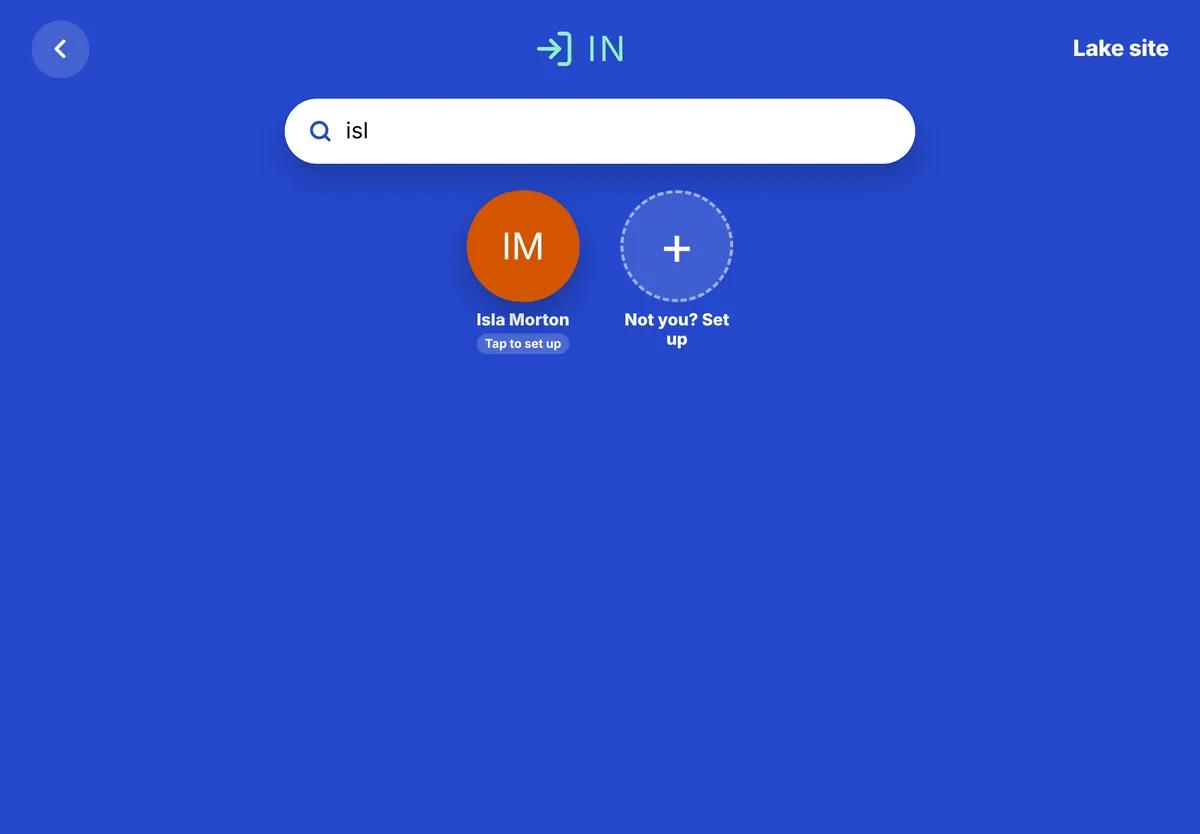
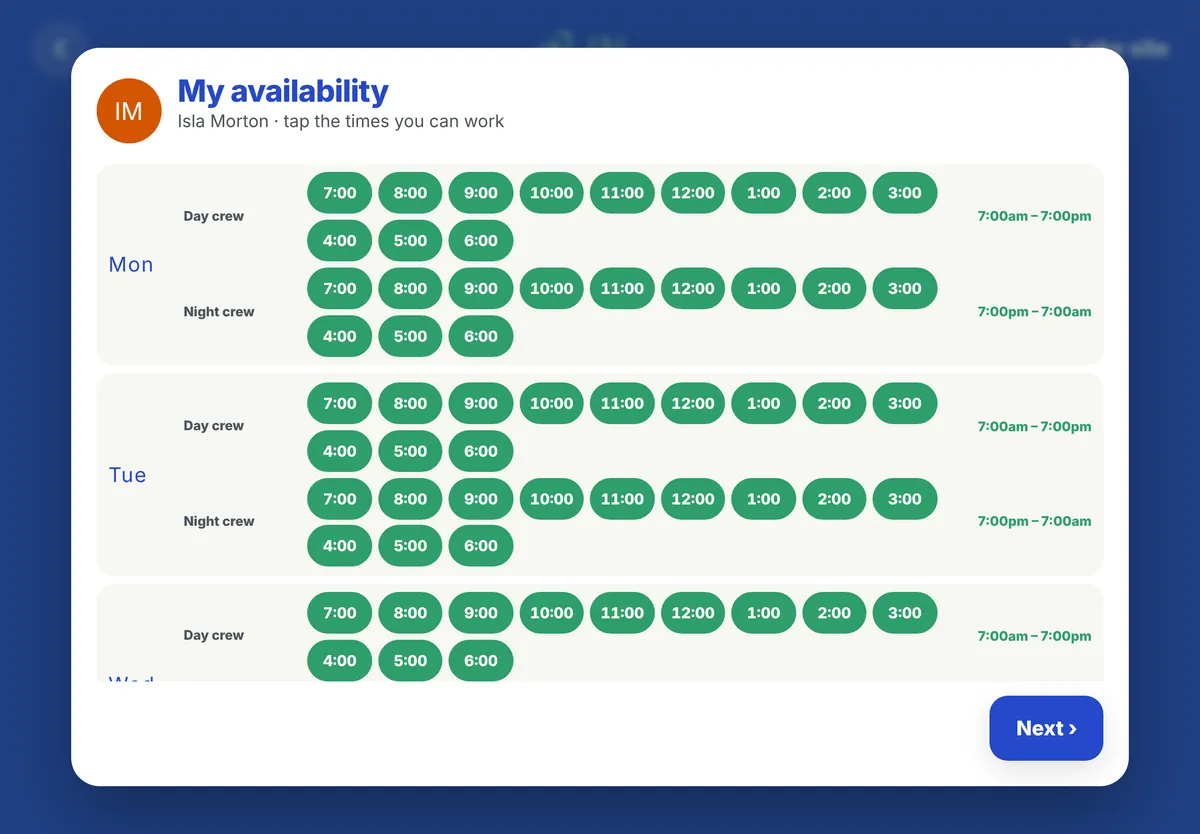
You only do this once. If your name is not there, or it says your number is not the one on file, tell your manager or the office. They fix it on their side.
2. Signing in
- Tap IN.
- Type your name and tap it.
- Type your PIN.
That is it. The tablet says Signed in with the time.
3. Signing out
- Tap the gold OUT button.
- Tap your name. Only people who are signed in are listed.
- Type your PIN.
The tablet shows your time in, your time out and how long you were there. Sometimes it asks a question first, such as how your day was or why you stayed late. Tap an answer and you are done.
If you forget to sign out, tell your manager. The office sets the right time.
Some workplaces also use these two. If yours does not, you will not see them.
- Paid back for something you bought. Open My hours and tap Reimbursement. Put in the day, the amount and a few words on what it was. It goes to the office for a yes or a no. Keep your receipt, LastOut does not store it.
- Handover notes. If a note was left for you, it shows when you sign in, and stays under Notes afterwards.
4. If you are a manager
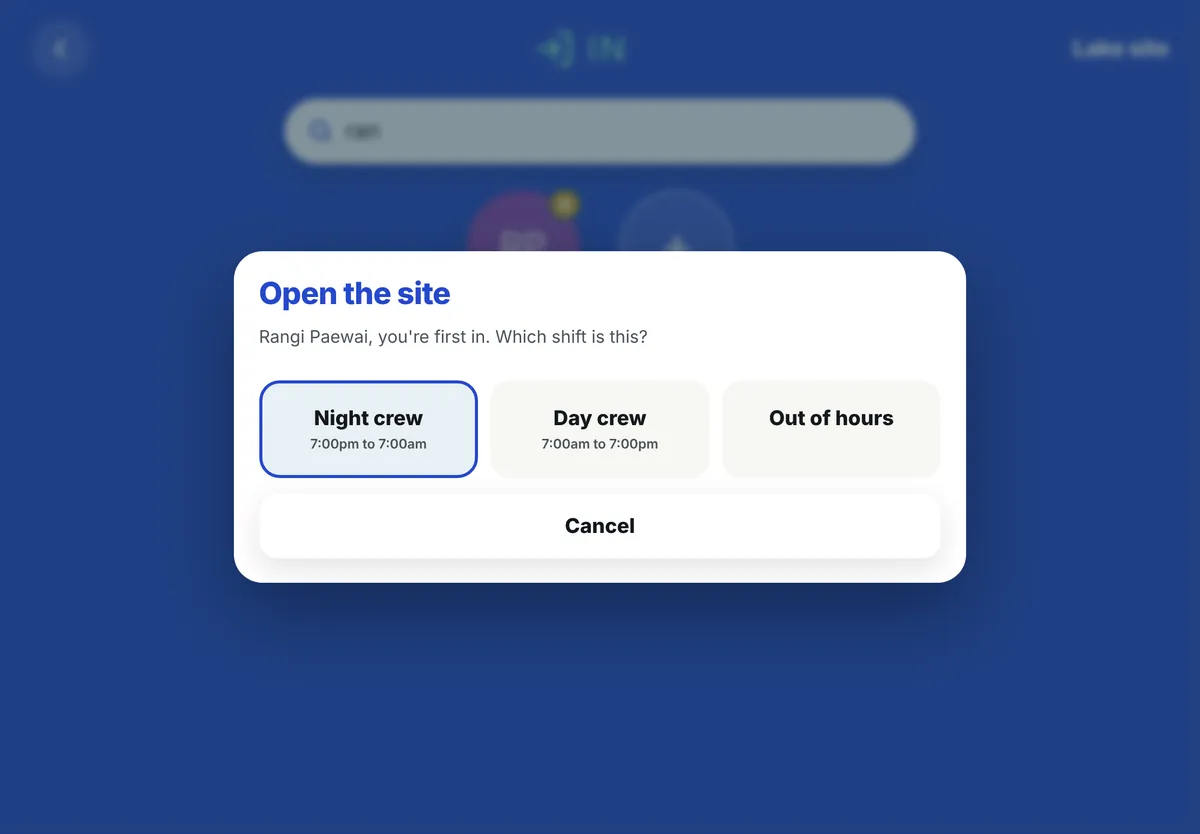
- When you are first in, the tablet asks you to open the site and which shift it is. Tap the shift, then your PIN.
- You can sign someone else out from the OUT screen if they left without doing it.
- When you are last out, signing out closes the site.
- If your workplace uses handover notes, the screen after you sign out has Leave handover note. Write it for the next manager or for the whole team.
5. On your own phone
- Open the address your office gave you. It starts with lastout.co.nz/.
- Type your mobile number and press Text me a code.
- Type the 6 digits from the text.
If the text does not come, press Got a code from the office? and ask the office for a code.
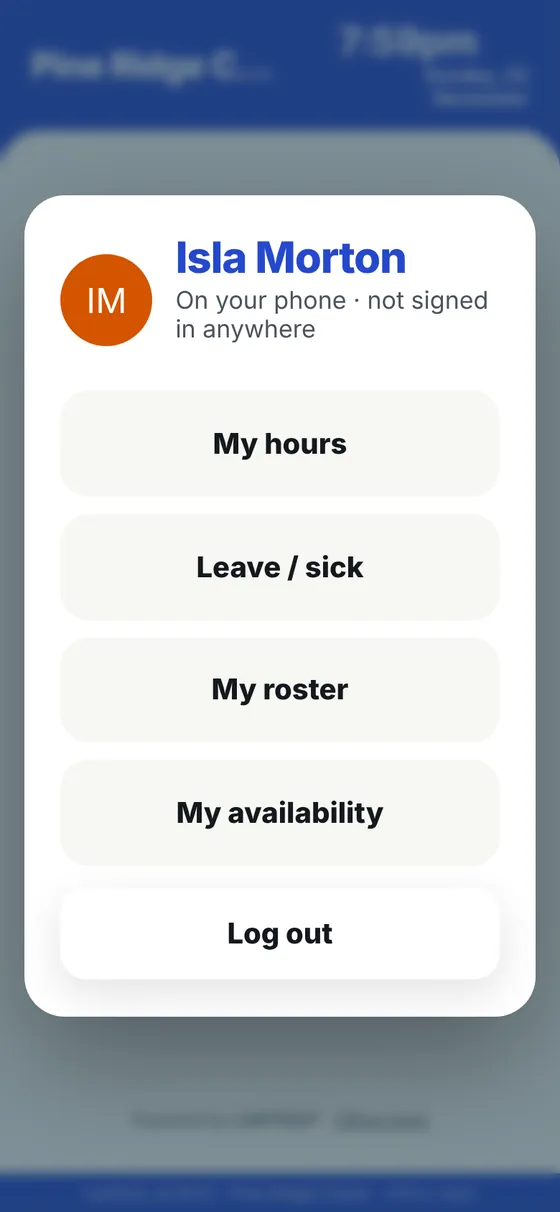
- My hours shows what you have worked.
- Leave / sick sends a request to the office.
- My roster shows the shifts you have been given, once the office has published the week.
- My availability is where you change when you can work.
You stay logged in on your phone. If you lose it, tell the office and they log it out.
6. What LastOut keeps about you
Your name, your mobile, when you signed in and out, your availability and your requests. The link What we keep about you on the set-up screen has the full list. Questions about your hours, roster or pay go to your employer.