Office guide
For the person setting LastOut up. The pictures show a made-up camp. Your screens carry your own name, sites and shifts.
- What to have ready
- Make your login
- Check your shifts and sites
- Add your staff
- Put a tablet at each site
- The first day
- Phones
- Roster, availability and cover
- Requests and changes
- Pay day
- More office logins
- When something is not right
1. What to have ready
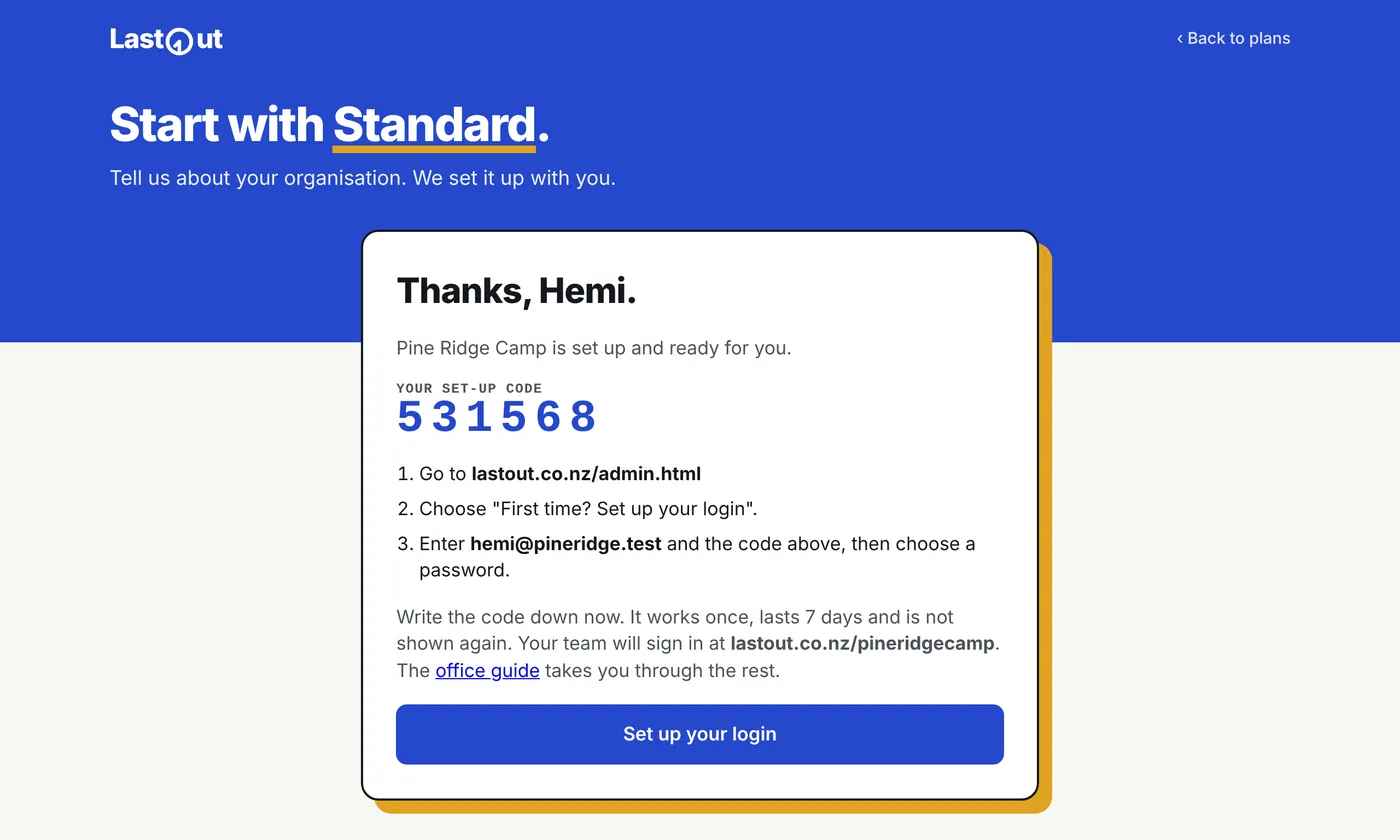
- Your 6-digit set-up code. It is on the screen you saw when you signed up, or LastOut gave it to you. It works once and lasts 7 days.
- An authenticator app on your own phone. Google Authenticator, Microsoft Authenticator and 1Password all work.
- A list of your staff: full name and mobile number for each.
- A tablet for each site, on wifi or mobile data. Any tablet with a web browser will do.
2. Make your login
- On a computer, go to lastout.co.nz/admin.html.
- Choose First time? Set up your login.
- Type the email you signed up with and press Next.
- Type your set-up code, your name and a password of 10 or more characters. Press Create my login.
- LastOut shows a square code. Open your authenticator app, scan the square, then type the 6 digits the app shows and press Turn on.
From now on you sign in with your email, your password and the 6 digits from the app. Every office login works this way.
3. Check your shifts and sites
LastOut starts you with the shifts you named when you signed up, at times that suit your kind of organisation. Check them before anyone signs in.
- Open the Sites & devices tab and press Shifts.
- For each shift, Times sets when it starts and finishes, Breaks sets its unpaid breaks, and Rename changes what it is called.
- Add a shift makes another one.
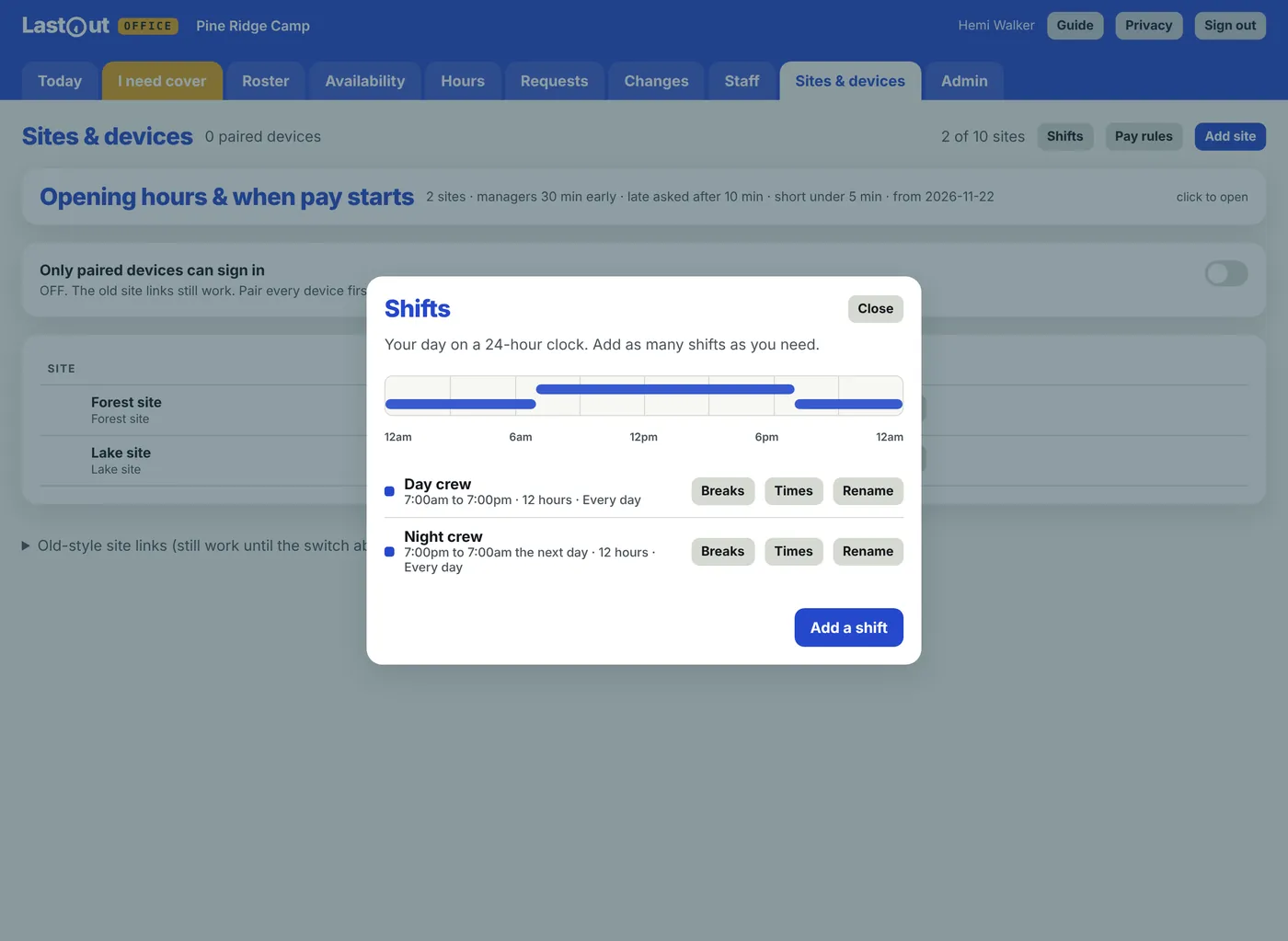
On the same tab, Add site adds a site and Edit renames one. Pay rules holds how your pay is worked out, such as whether pay starts at sign-in or at the start of the shift. It also holds your pay period: every week, every fortnight or every four weeks, and the day one starts.
4. Add your staff
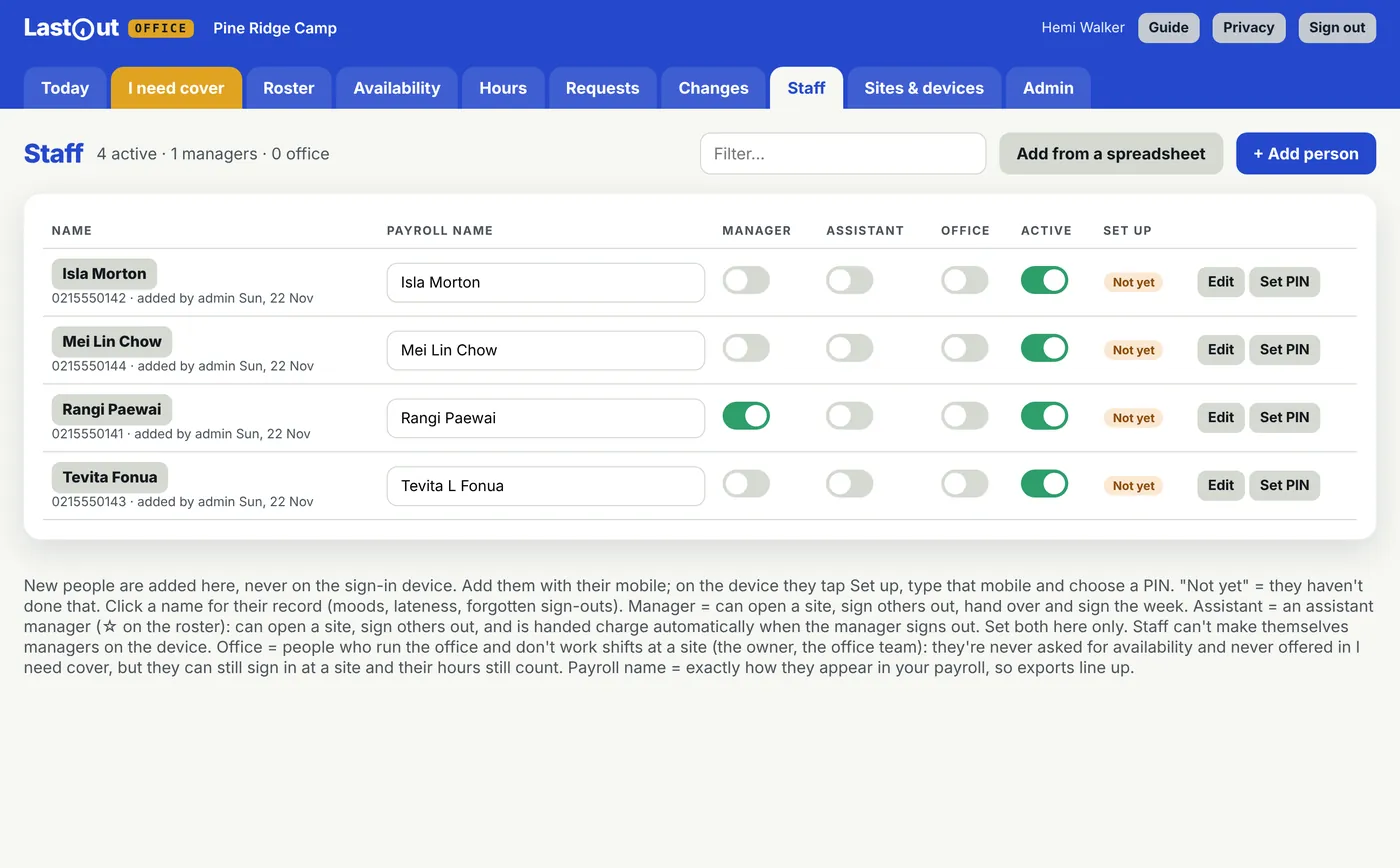
- Open the Staff tab and press Add from a spreadsheet.
- Press Download the template. Fill it in, one person per row: full name and mobile. Put yes in the Manager column for anyone who can open a site.
- Press Choose the file and pick your filled-in template. LastOut shows who will be added. Nothing is added until you say so.
To add one person, use + Add person instead.
A manager can open a site, sign other people out and hand over to another manager. Staff cannot make themselves managers. You set it here.
5. Put a tablet at each site
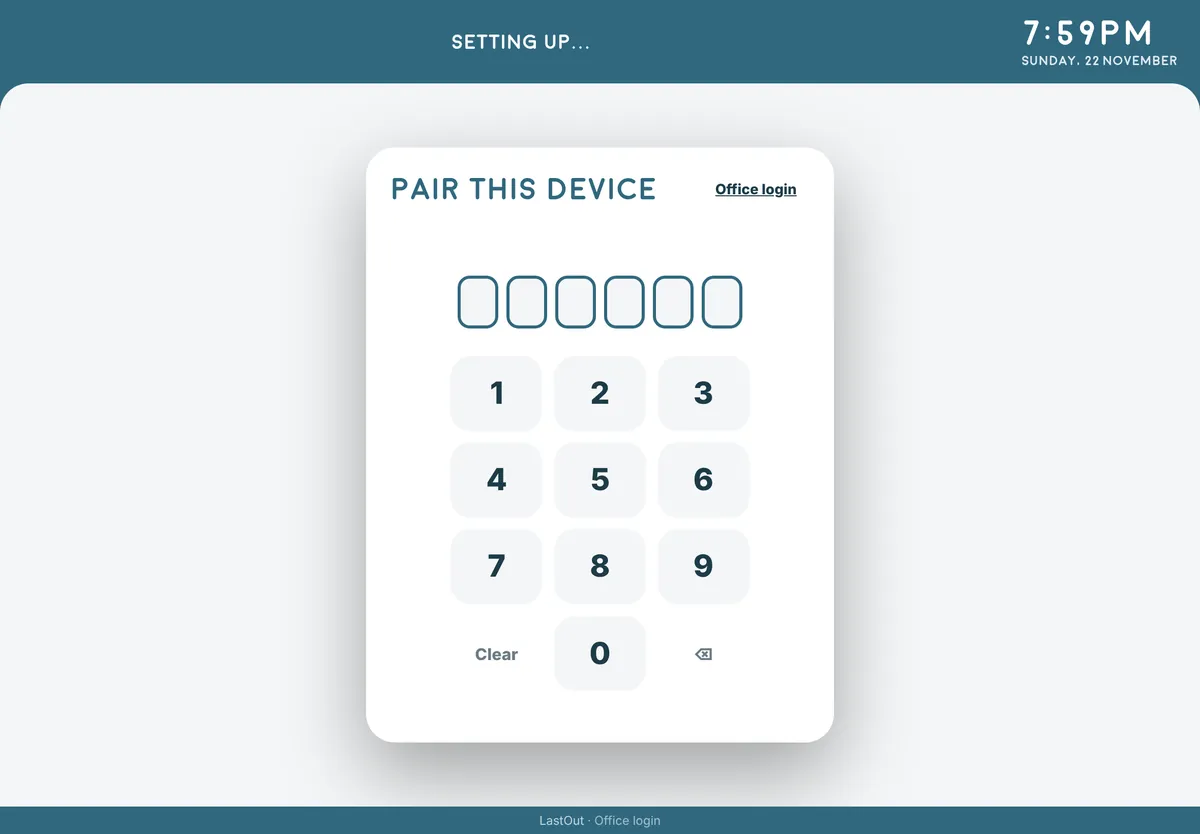
- On your computer, open Sites & devices and press Pair a device beside the site. LastOut shows a 6-digit code. It works once and lasts 10 minutes.
- On the tablet, open a web browser and go to lastout.co.nz/yourname/pair, where yourname is your own LastOut address. The Pair a device box shows it in full.
- Type the code. The tablet now belongs to that site and shows the two big buttons.
Add the page to the tablet's home screen so it opens like an app. Only paired devices can sign in starts switched on, so a tablet that has not been paired cannot sign anyone in.
6. The first day
Send your team the staff guide. The short version:
- Each person taps the green button, types their name, types their mobile and chooses a 4-digit PIN. That is once only.
- The tablet then asks when they can work. That is once only too.
- The first manager in opens the site. The last person out closes it.
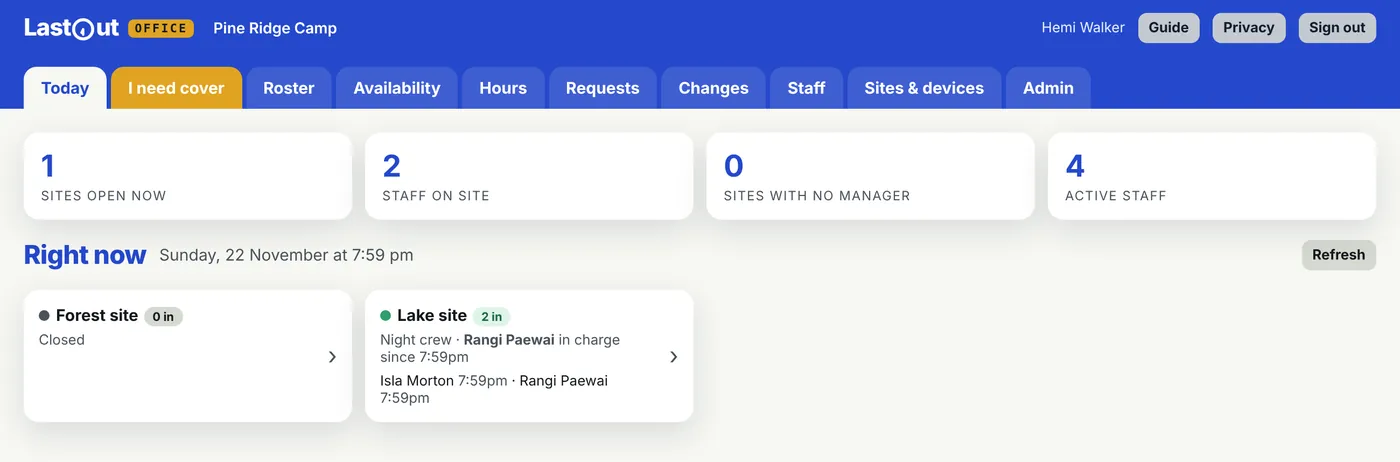
Your Today tab shows it as it happens: which sites are open, who is in, and who is in charge.
7. Phones
Your team can also log in on their own phone, at the address on your sign-up screen: lastout.co.nz/ then your organisation's name. On their phone they see their hours, their roster and their availability, and can ask for leave.
They type their mobile and LastOut texts them a code. If the text does not arrive, open Staff, click their name and press Give a login code. Read them the code. It works once, for 10 minutes.
8. Roster, availability and cover
- Availability shows when each person said they can work. Nobody can sign in until theirs is filled in. You can fill it in for them, and they are asked to confirm it at their next sign-in.
- Roster is the week, site by site. Press + under a day to put someone on. Staff cannot see a week until you press Publish to staff.
- I need cover is for a gap. Pick the day, the site and the shift, and LastOut lists who is free.
The roster never changes anyone's hours. Hours come only from signing in and out.
9. Requests and changes
- Requests is where your team's asks land: leave, a sick day, a time that needs changing, someone who did not sign out. Each one needs a yes or a no from you.
- Changes is the record of everything that was changed and who changed it. Nothing on it can be edited.
10. Pay day
- Open the Hours tab, pick the pay period and press Show.
- Check the list. Detail beside a name shows each of their shifts.
- Press Export pay run summary (CSV). You get a spreadsheet with one line per person and a column of paid hours for each of your shifts.
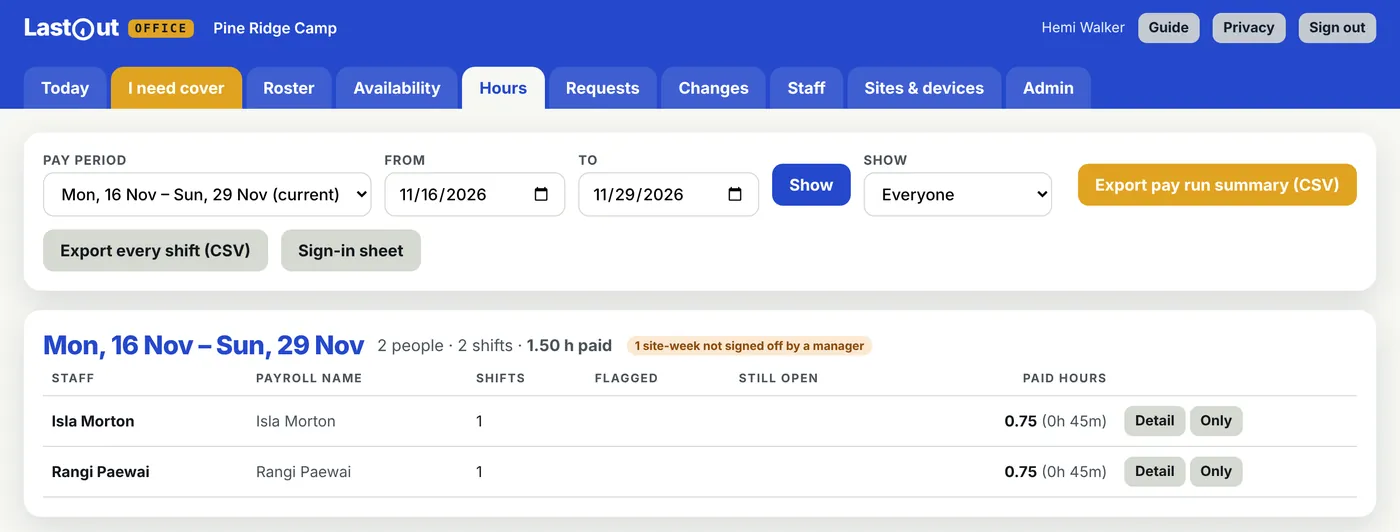
If a request for that period is still waiting, LastOut tells you the pay run is not ready and takes you to it. Export every shift (CSV) gives one line per shift instead, and Sign-in sheet prints the period like a paper sheet.
The Payroll name on a person's staff record is the name used in these files. Set it to match your payroll and the two line up.
LastOut starts you on a fortnight. If you pay every week or every four weeks, or your pay period starts on a different day, change it yourself under Pay rules on the Sites & devices tab.
Reimbursements, public holidays and handover notes
A new account starts with these on, where its plan has them. If your office does not show one, or you would rather not have one, email us and we switch it for you.
- Reimbursements. Someone who bought something for work asks to be paid back, from their hours on the tablet or their phone. It lands in Requests as a Reimbursement. Say yes and the amount goes in the last column of the pay run summary. LastOut keeps the amount and what it was for. It does not keep receipts or photos.
- Public holidays. Each public holiday is named on the roster and on the Hours tab, and Edit on a site lets you pick its region for its anniversary day. The export can show which hours fell on one. LastOut names the day. It does not work out holiday pay, your payroll does that.
- Handover notes. A manager signing out can leave a note for the next shift, for the next manager or for the whole team. Handover notes on the Sites & devices tab lists them, lets you hide one, and sets whether a new note pops up at sign-in or waits as a mark on the person's name.
11. More office logins
Open Admin and press + Invite. LastOut shows a 6-digit code once. Tell the person the code. They go to lastout.co.nz/admin.html and choose First time? Set up your login, the same way you did.
- Owner can do everything, including adding and removing logins.
- Admin runs the office but cannot add or remove logins.
- Viewer can look and change nothing.
Give a login only to people who need one. If someone forgets their password, remove their login and invite them again. If they lose the phone with their authenticator app, an owner resets their 2-step sign-in on the same tab.
12. When something is not right
- A tablet shows the pairing number pad. It has lost its pairing. Make a new code with Pair a device and type it in.
- A tablet has no internet. People can keep signing in and out. The tablet keeps the taps and sends them when it is back.
- Someone forgot to sign out. It lands in Requests for you to set the right time.
- Someone cannot find their name. They are not on your Staff tab yet, or their mobile there is wrong.
For anything else, email hello@lastout.co.nz. If we need to look inside your account to find a fault, your owner is asked first on the Admin tab, or told straight away in an emergency, and can end it there at any time.